Virtual Private Network

With the Point-to-Point Tunneling Protocol (PPTP) or Layer Two Tunneling Protocol (L2TP), which are automatically installed on your computer, you can securely access resources on a network by connecting to a remote access server through the Internet or other network. The use of both private and public networks to create a network connection is called a virtual private network (VPN).
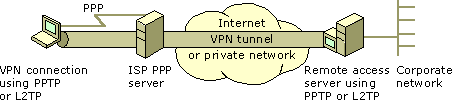
To make a virtual private network (VPN) connection

  1. In the Start menu, click on Control Panel
  2. Open Network Connections
  3. Under Network Tasks, click Create a new connection
  4. Click "Next"
  5. Connect to the network at my workplace
  6. Click "Next"
  7. Select Virtual Private Network connection
  8. Click "Next"
  9. Enter "IFAS VPN" for the Company Name
  10. Click "Next"
  11. Enter vpn.ifas.ufl.edu for the Host name or IP address
  12. Click "Next"
  13. Select "My use only"
  14. Click "Next"
  15. Check "Add a Shortcut to This Connection" to my desktop box if you want a shortcut
  16. Click "Finish"

To connect to the VPN

  1. Double click the IFAS VPN shortcut on your desktop
  2. Enter your Gatorlink username and password
  3. Click "Connect"

You can now access services as if you were physically on the campus network. Ths also has the advantage of encrypting your connection.